Configuring Azure SQL Database as the Backend Database
PAM360 is bundled with PostgreSQL as the default backend database. However, it also supports configuration with alternative database servers like PostgreSQL, MS SQL (standalone and clusters), and Azure SQL. This document provides a step-by-step guide on configuring Azure SQL as the backend database for your PAM360 installation.
You can also refer to this document to set up the PAM360 database using the Azure managed instance.
Here, in this document, you will learn about the following topics:
- Creating the SSL Certificate and Installing it in the Windows Certificate Store
- Importing the SSL Certificate to PAM360
- Enabling SSL Encryption in SQL Server
- Executing ChangeDB.Bat in PAM360
Additional Detail
To ensure high level of security, PAM360 has been configured to connect to the SQL server only through SSL.
1. Creating the SSL Certificate and Installing it in the Windows Certificate Store
(In the machine where SQL server is running)
Prior to connecting PAM360 with the SQL server, you need to enable SSL encryption in the SQL Server. For this, you need to create an SSL Certificate and get it signed by either a Certificate Authority (CA) or self-sign it.
1.1 Generating a Certificate and Getting it Signed by a Third-Party CA
If you have a CA-signed SSL certificate, proceed directly with the certificate installation from step 4. Else, follow the below steps 1 to 3 to generate and install a new CA-signed certificate:
- Execute the following command in your terminal to generate a private key using openssl:This command generates a 2048-bit RSA private key and saves it to server.key, protected by a passphrase.
openssl genrsa -des3 -out server.key 2048
- Use the private key to create a Certificate Signing Request (CSR). This request will be sent to a CA for signing. Execute the following command:During this process, you will be prompted to enter the Passphrase for the key and provide information such as the Common Name, Hostname or IP Address, where Common Name should be the Fully Qualified Domain Name (FQDN) of your SQL server.
openssl req -new -key server.key -out server.csr
- Submit the generated CSR (server.csr) to a third-party CA such as VeriSign, Thawte, or RapidSSL for signing. Refer to the respective CA’s documentation for instructions on submitting the CSR and completing the signing process. Note that this service usually requires a fee.
In a few days, you will receive your signed SSL certificate and the CA's root certificate as `.cer` files. - Install the server certificate on the SQL server using the MMC console:
- Click Start and select Run. In the Run dialog box, type MMC and press enter. This opens the Microsoft Management Console (MMC).
- From the Console menu, select Add/Remove Snap-in.
- Click Add, then select Certificates and click Add again.
- When prompted, choose to manage certificates for the Computer Account.
- Navigate to Manage User Certificates (Local Computer) >> Personal >> Certificates.
- Right-click on Certificates, select All Tasks, and then click Import
- Browse to the location of your signed server certificate, select it, and complete the import process.
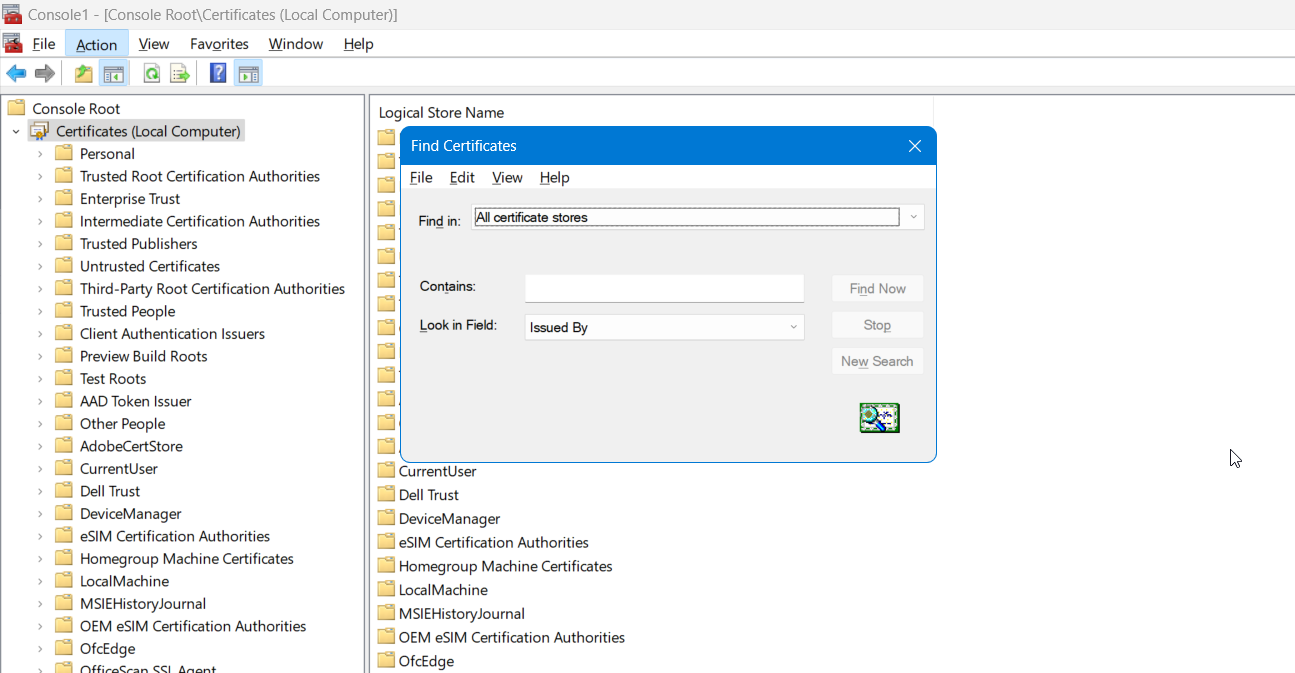
- Install the CA root certificate in PAM360 using the following steps:
- Copy the CA's root certificate to the <PAM360 Installation Folder>\bin directory.
- From the <PAM360 Installation Folder>\bin directory, execute the following command:Replace <Absolute-Path-of-the-Certificate> with the actual path of the root certificate file you copied. This command adds the root certificate to the PAM360 certificate store.
importCert.bat <Absolute-Path-of-the-Certificate>
1.2 Creating a Self-Signed Certificate using Powershell
To create a self-signed certificate and use it, carry out the following steps in the machine where SQL server is installed:
- Navigate to the SQL Server and open Powershell (run as Administrator).
- Execute the following command; this command will install and store a self-signed certificate in your local store.
New-SelfSignedCertificate -DnsName FQDN of the SQL server -CertStoreLocation cert:\LocalMachine\My
2. Importing the SSL Certificate to PAM360
Upon completing with the certificate installation, follow the below steps to import the server certificate to the PAM360 certificate store:
- Copy the server certificate and paste it under the <PAM360 Installation Folder>/bin directory.
- Execute the following command; this adds the certificate to the PAM360 certificate store.
importCert.bat <Absolute-Path-of-the-Certificate>
3. Enabling SSL Encryption in SQL Server
- On the machine where the SQL server is running, click Start and open the SQL Server Configuration Manager.
- Expand the SQL Server Network Configuration in the left pane, right-click the Protocols for the server you want to configure and click Properties.
- Go to the Certificate tab and configure the database engine to use the specified certificate.
- Set Force Encryption to Yes to ensure all client/server communications are encrypted. This setting will deny access to clients that cannot support encryption, which is the recommended configuration for security. Alternatively, you can set Force Encryption to No if you prefer the encryption to be requested by the client application. This is not recommended as it can lead to unencrypted communications.
- Restart the SQL Server to apply the changes.
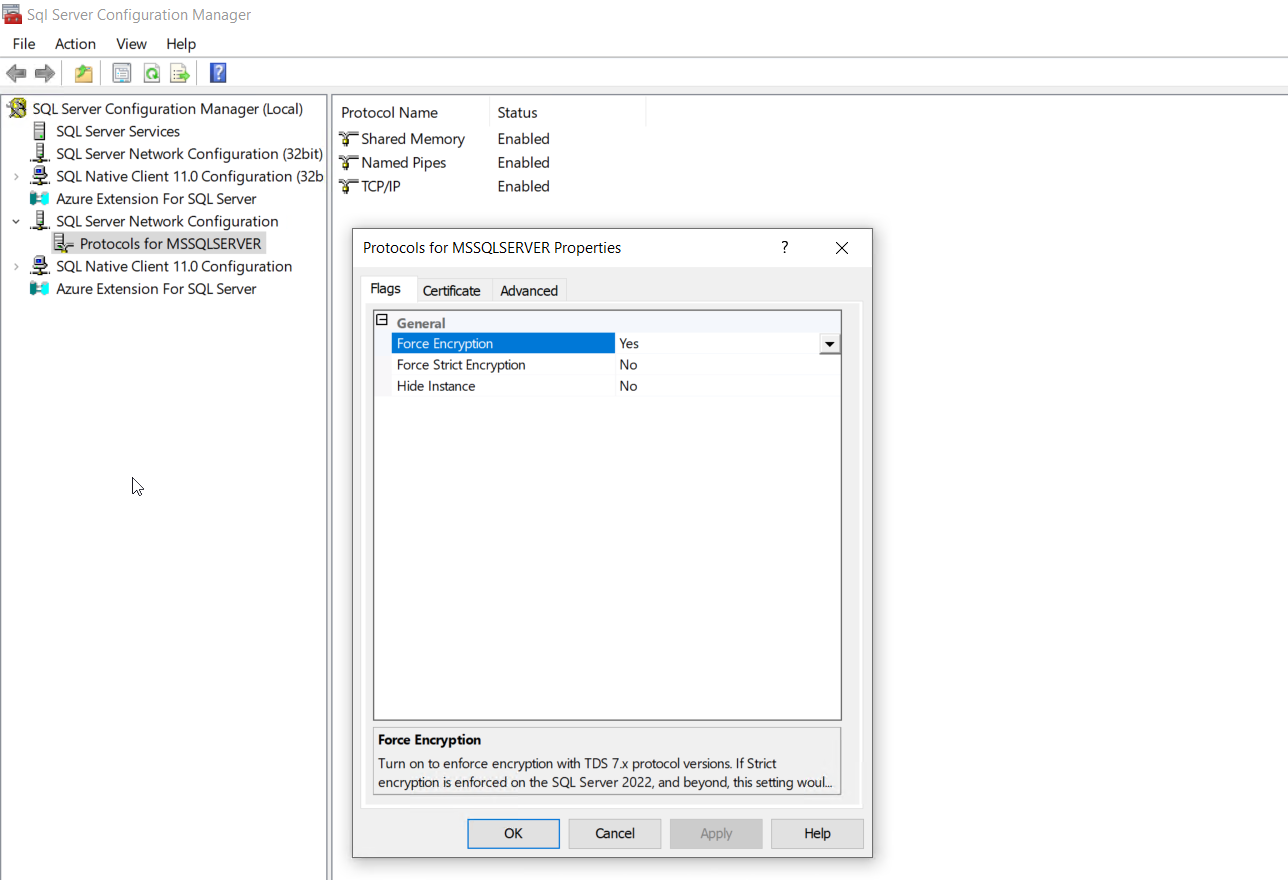
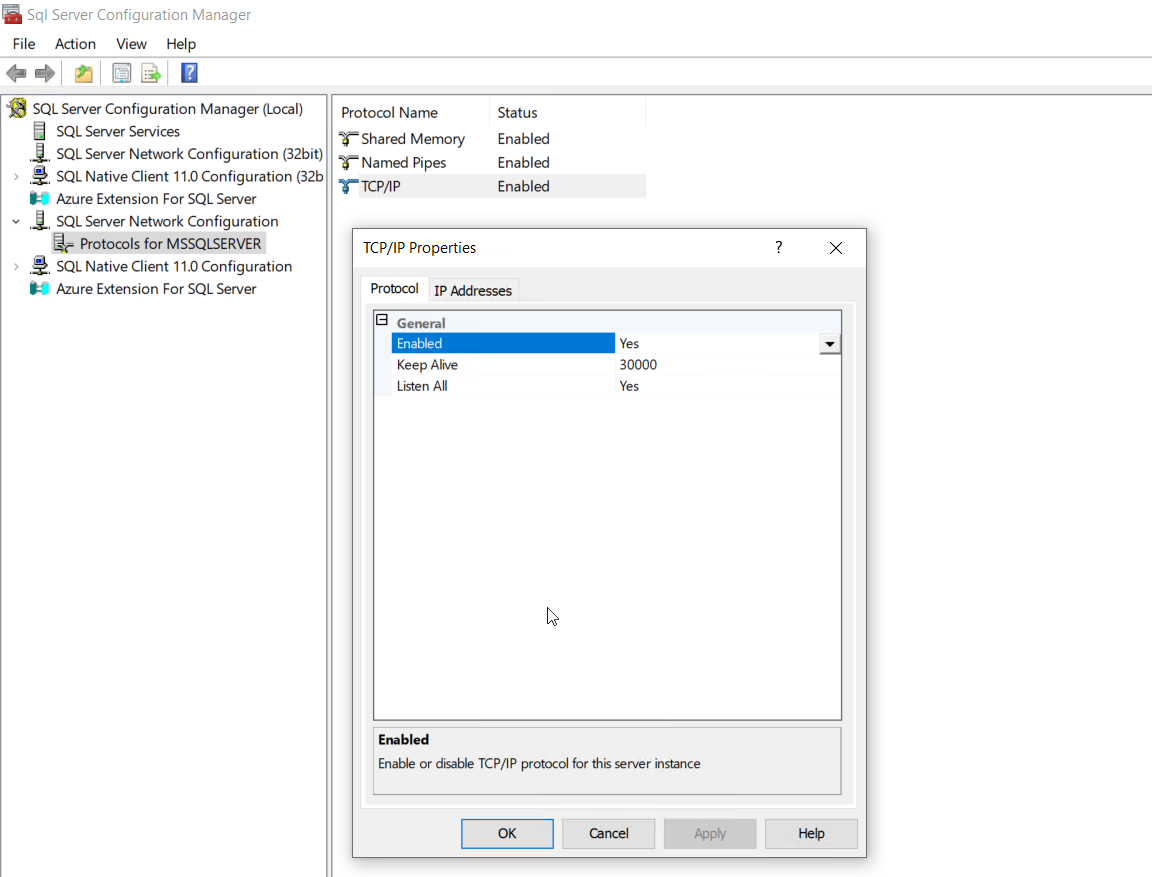
For more details, refer to the section Configuring SSL for SQL Server in the Microsoft's knowledge base article.
4. Executing ChangeDB.Bat in PAM360
Provide the details about the SQL server to PAM360 by executing the file ChangeDB.bat or ChangeDB.sh. Follow the below steps to complete with the configuration process.
- Navigate to the <PAM360 Installation Folder>/bin folder and execute the file ChangeDB.bat or sh ChangeDB.sh.
- In the pop-up that opens up, read the Best Practices Guide first by clicking the 'Open the best practices document' button. Click the 'Continue with setup' button to proceed with the DB change configuration.
- In the window that displayed, enter the below details:
- Select the Server Type as SQL Server.
- Host Name: The name or the IP address of the machine, where the MS SQL server is installed.
- Instance Name: Specify the named instance of the SQL server, to be used for PAM360. If the instance name is not specified, PAM360 will try establishing connection with the default instance on port 1433.
Best Practice
Since PAM360 connects to MS SQL only in SSL mode, it is recommended that you create a dedicated database instance running in a specific port for PAM360. If you want to specify a port number other than 1433, you can specify it in the Host Name parameter above as <hostname>:<port>.
- Database Name: Enter a name for the PAM360 database. For missing database name, the default will be provided with PassTrix. If you want to have a different database name, specify it here. PAM360 will take care of creating the Master Key, Symmetric Key, etc.
- Authentication: The way by which you wish to connect to the SQL server. Choose Windows, if you are connecting to the SQL server from Windows. Make use of the Windows Single Sign On facility, provided the PAM360 service is running with a service account, which has the privilege to connect to the SQL server. Otherwise, select the option SQL.
Best Practice
It is recommended to choose the option Windows, as the Username and Password used for authentication are not stored anywhere.
- User Name and Password: If you have selected the option SQL in step v, specify the user name and password with which PAM360 can connect to the database.
Additional Details
- The User Name and Password entered here will be stored in the database_params.conf file in PAM360. So, take care of hardening the host.
- You can use even your Windows login credentials, if you are connecting to the database from Windows. In this case, you need to enter the User Name as <domain-name>\<username>.
- Encryption Key: The key to encrypt your data and store it in the SQL server. You may either leave it Default allowing PAM360 to generate a key. If you want to have your custom key, select the option Custom.
If you have selected the option Custom, perform the following operations:
- Create Database - For details, refer to https://learn.microsoft.com/en-us/sql/relational-databases/databases/create-a-database?view=sql-server-ver16
- Create Master Key - For details, refer to https://learn.microsoft.com/en-us/sql/relational-databases/security/encryption/create-a-database-master-key?view=sql-server-ver16
- Create Certificate - For details, refer to https://learn.microsoft.com/en-us/sql/relational-databases/security/encryption/create-a-certificate?view=sql-server-ver16
- Create Symmetric Key - For details, refer to https://learn.microsoft.com/en-us/sql/t-sql/statements/create-symmetric-key-transact-sql?view=sql-server-ver16
- Provide the Certificate Name and Symmetric Key Name in the GUI.
- Instance Type: PAM360 allows both Local Instance (on-premise) and Azure SQL as backend databases. Here, select Azure SQL as your instance type to continue with the DB change configuration.
- JDBC Driver: The driver works seamlessly with the MS SQL server database. Microsoft (Recommended) is the default driver selected in the field and is recommended for most installations because it is compatible with the latest SQL server versions and features. The alternative JDBC driver available for selection is jTDS, which supports specific compatibility features.
- Connection Properties: After selecting this checkbox, you will have the option to specify custom connection properties in the following format: "key1=value1;key2=value2".
Caution
The existing server details in the DB migration setup window and properties, such as SSL and encrypt, cannot be added as custom connection properties.
- Finally, click Test to ensure that the connection settings are proper, and then click Save.
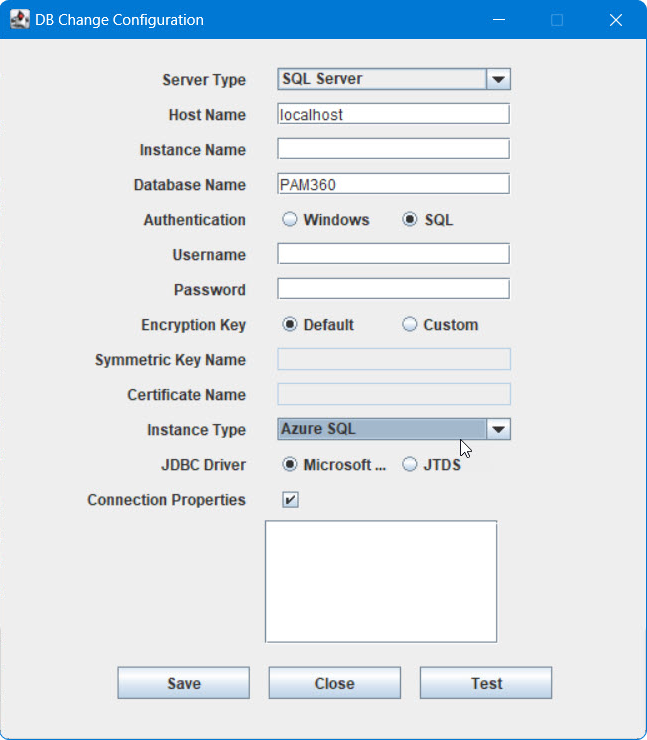
Caution
Upon performing the above steps, navigate to the <PAM360 Installation Folder>/conf directory and move the masterkey.key file to a secure location. The SQL Server encrypts the data with a hierarchical encryption and key management infrastructure. Each layer encrypts the layer below it by using a combination of certificates, asymmetric keys, and symmetric keys. One among them is the Database Master Key, which in turn is created by the Service Master Key and a Password. This password is stored in PAM360 under the <PAM360 Installation Folder>/conf directory in a file named masterkey.key. It is highly recommended that you move the masterkey.key file to a secure location. This is to ensure data security. Take care to keep this key safe. You will require it while performing High Availability and Disaster Recovery. If you lose this key, you will have to configure MS SQL/Azure MS SQL server setup all over again.
For more details on encryption and key management in Azure MS SQL, refer to this MSDN document.