Smart Card / PKI / Certificate Authentication
PAM360 serves as a secure vault for sensitive passwords, necessitating robust authentication mechanisms to access the software. To cater to diverse environments, PAM360 provides multiple authentication options, including local authentication and integration with external identity stores such as Active Directory (AD), Microsoft Entra ID, and LDAP. Strengthening security further, PAM360 supports smart card authentication. This advanced authentication method requires both possession of a smart card and knowledge of its associated PIN, ensuring enhanced access control.
It is important to note that smart card authentication in PAM360 serves as the primary authentication mechanism and is distinct from Two-Factor Authentication. If smart card authentication is deployed in your environment, PAM360 can be configured to authenticate users via smart cards, bypassing traditional first-factor authentication methods such as AD, Entra ID, LDAP, or local authentication.
Steps to Enable Smart Card Authentication in PAM360:
- Understanding the Authentication Mechanism
- Authentication Workflow
- Importing the CA Root Certificate
- Mapping User Details Between Smart Card Certificate and PAM360 User Store
- Configuring Status Check for User Certificates
- Comparing User Certificates for Verifying Authentication
- Enabling Smart Card Authentication for PAM360
- Smart Card Authentication in High Availability Scenario
- Troubleshooting Tip
1. Understanding the Authentication Mechanism
When users attempt to access the PAM360 web interface, they must first complete smart card authentication on their machine by presenting the smart card and entering the associated PIN. PAM360 supplements smart card technology with SSL communication, prompting users to provide their X.509 certificate for access. Users may:
- Provide the certificate from the smart card or local certificate store, in which case PAM360 authenticates the user.
- When unable to provide the certificate, PAM360 redirects the users to the standard login page for authentication.
2. Authentication Workflow
2.1 Smart Card Authentication Workflow
- The user connects to the PAM360 server.
- The server presents its certificate to the client (web interface).
- The client verifies the server’s certificate against the browser’s certificate authority.
- Upon successful verification, the client sends the user's smart card certificate to the server.
- The server verifies the client certificate against the server's trust store, checks its revocation status with the OCSP server (if applicable), and ensures the user certificate matches the one stored in AD/LDAP or the PAM360 user store.
- Upon successful validation, the server grants access to the web interface.
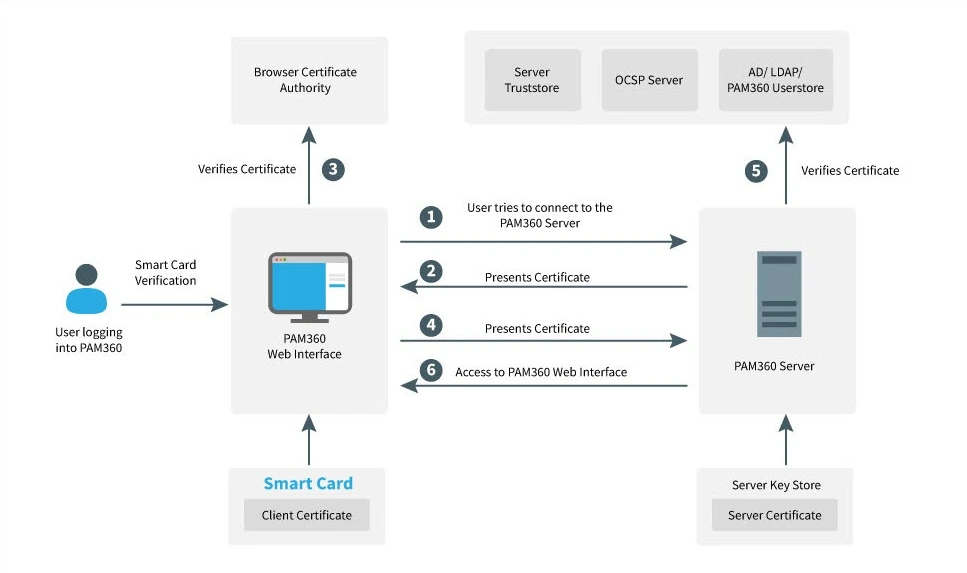
2.2 Smart Card Authentication in PAM360
- The user attempts to access the PAM360 web interface.
- The unique identifier from the smart card certificate is matched against the corresponding attribute in the PAM360 user store.
- The user certificate (X.509) stored in the PAM360 database (for manually added users) or retrieved from AD/LDAP is compared with the presented certificate.
- Access is granted if the certificates match perfectly.
3. Importing the CA Root Certificate
If using an internal certificate, specify the root certificate of the CA that issued the X.509 user certificates. For third-party CA-signed certificates, this step can be skipped. To import the root certificate, follow these steps:
- Navigate to Admin >> Authentication >> Smart card / PKI / Certificate.
- Under the Import the CA Root Certificate section, specify the root CA’s certificate path and click Import Now.
- Now, restart the PAM360 server.
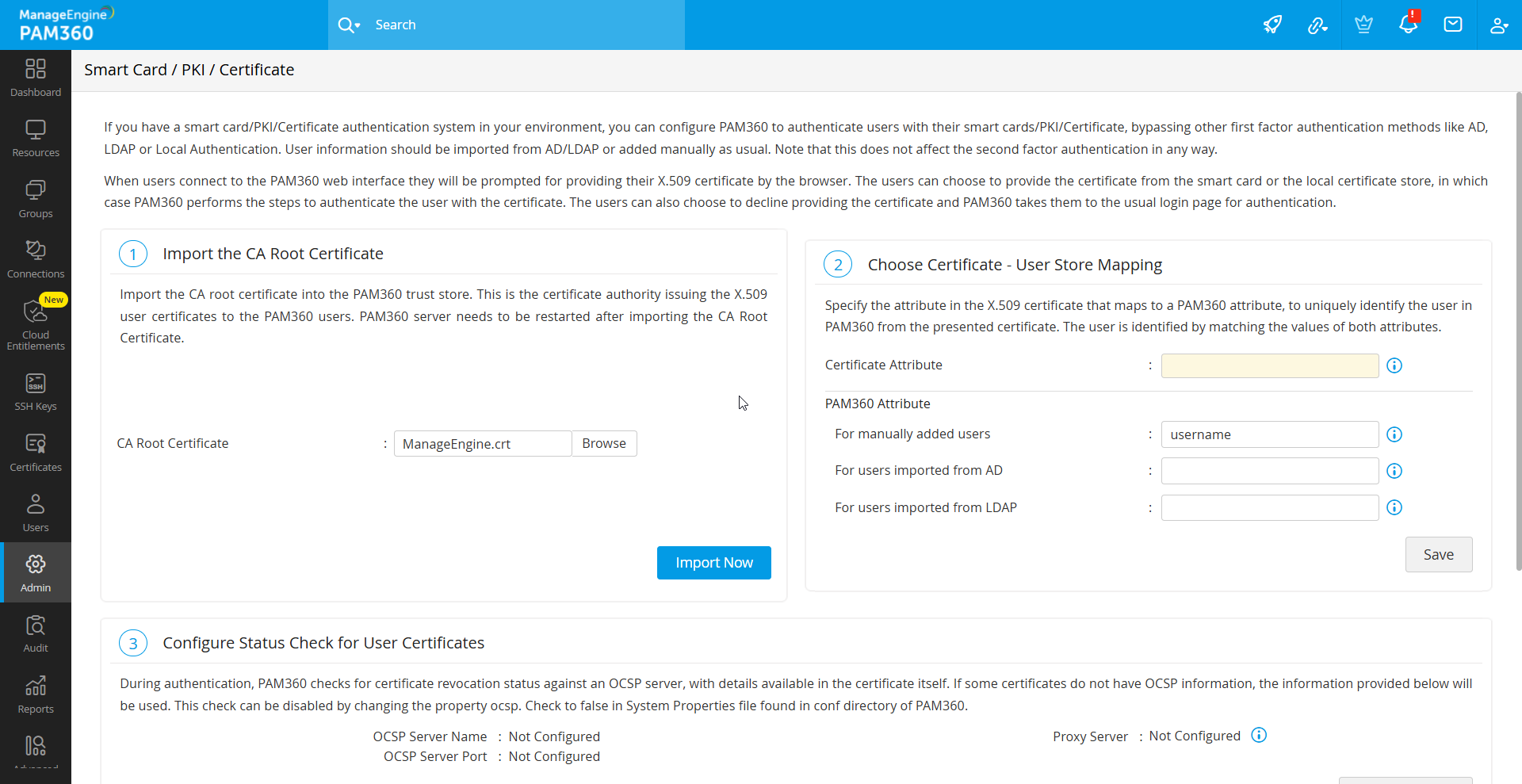
Once imported, certificates signed by this CA are automatically recognized.
4. Mapping User Details Between Smart Card Certificate and PAM360 User Store
An essential step in integrating smart card authentication with PAM360 is mapping user details between the smart card certificate and the PAM360 user database. This process ensures that the attribute in the smart card certificate, which uniquely identifies the user, aligns with the corresponding attribute in the PAM360 user database.
This mapping involves two key actions:
- Defining the attribute in the smart card certificate for comparison.
- Specifying the matching attribute in the PAM360 user database.
4.1 Specifying the Certificate Attribute
PAM360 provides flexibility to select any attribute from the smart card certificate that uniquely identifies the user within your environment. You can choose attributes such as SAN.OtherName, SAN.RFC822Name, SAN.DirName, SAN.DNSName, SAN.URI, or Common Name. During the authentication process, PAM360 retrieves the value of the selected attribute and compares it with the corresponding attribute in the PAM360 user database.
To configure this, select the desired attribute from the Certificate Attribute drop-down menu.
Additional Detail
If your environment requires an attribute not listed for uniquely identifying users, contact PAM360 support to have it added.
4.2 Specifying the Matching Attribute in PAM360
After selecting the certificate attribute, define the corresponding mapping attribute in the PAM360 user database. This attribute is determined by how the user was added to PAM360; either manually or via Active Directory/LDAP.
For users added manually to PAM360, the username attribute in the PAM360 database is typically the only viable choice for comparison with the smart card certificate. In such cases, leave the default value, username, in the text field.
For users imported from Active Directory or LDAP, the default attribute used to uniquely identify the user is typically userPrincipalName. However, in some environments, other attributes like distinguishedName may be used for this purpose. Select the appropriate attribute based on your setup.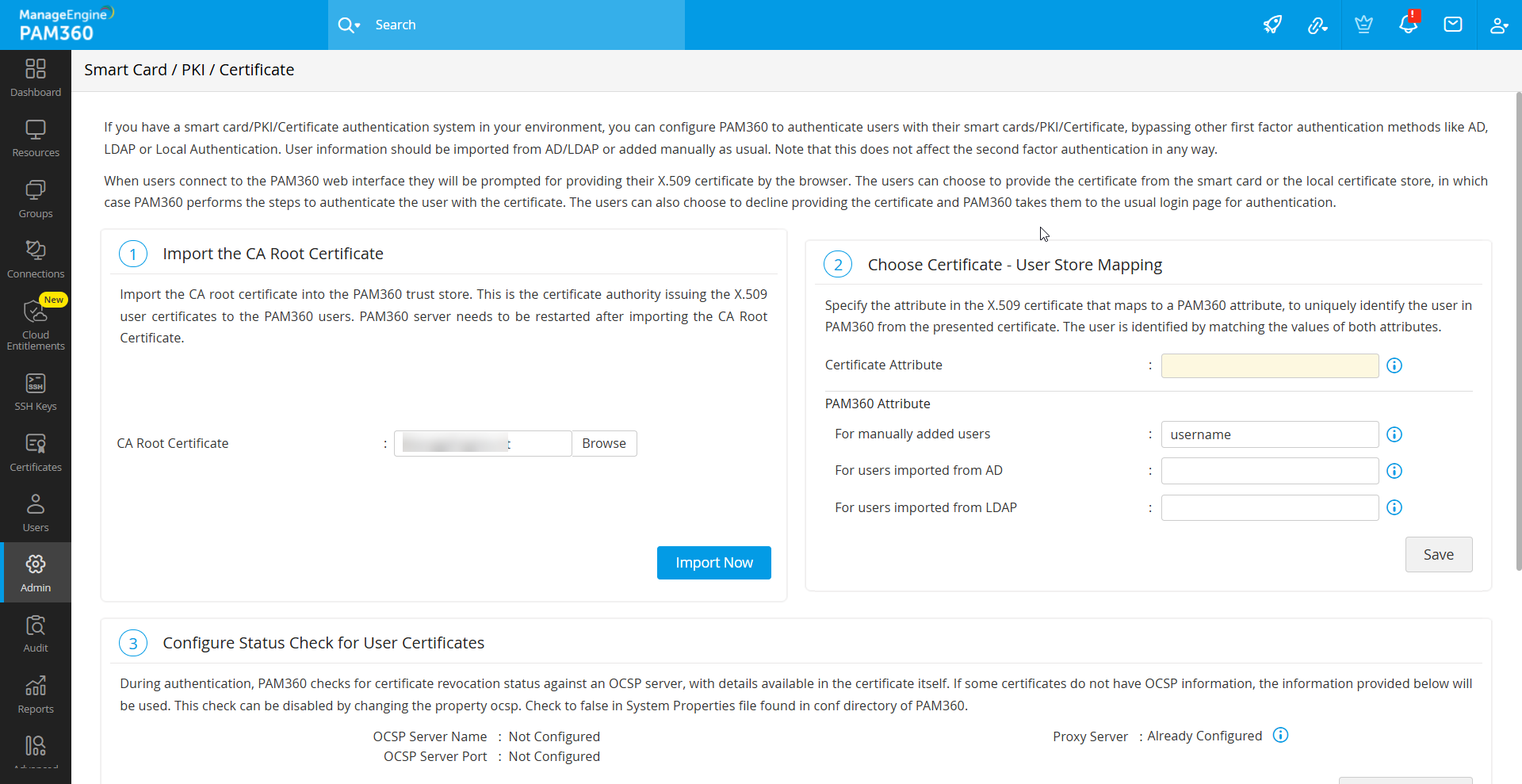
Once you have completed the configurations for both the certificate attribute and its mapping in PAM360, Save the settings to finalize the process.
5. Configuring Status Check for User Certificates
PAM360 verifies the revocation status of certificates using the Online Certificate Status Protocol (OCSP). For certificates lacking OCSP details, configure OCSP server information as follows:
- Under the Configure Status Check for User Certificates section, click the Configure Now button.
- In the pop-up form that opens, enter OCSP server details such as OCSP Server Name and OSCP Server Port.
- Click Save to apply the changes.

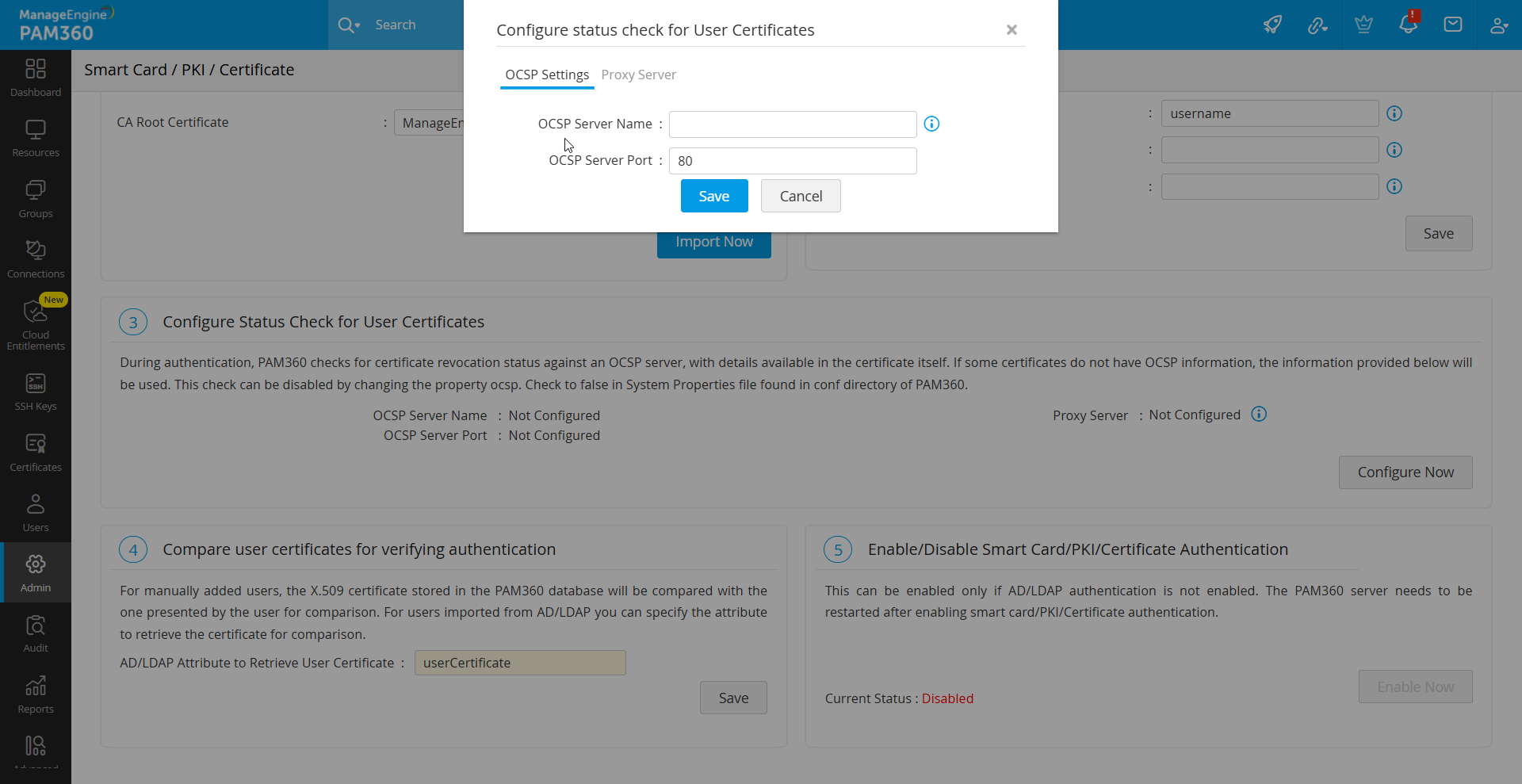
To disable OCSP checks, set the property ocsp.check to false in the System Properties file located in the conf folder of the PAM360 installation directory.
Caution
Internet access is required for OCSP validation, and enterprise networks may require proxy server settings.
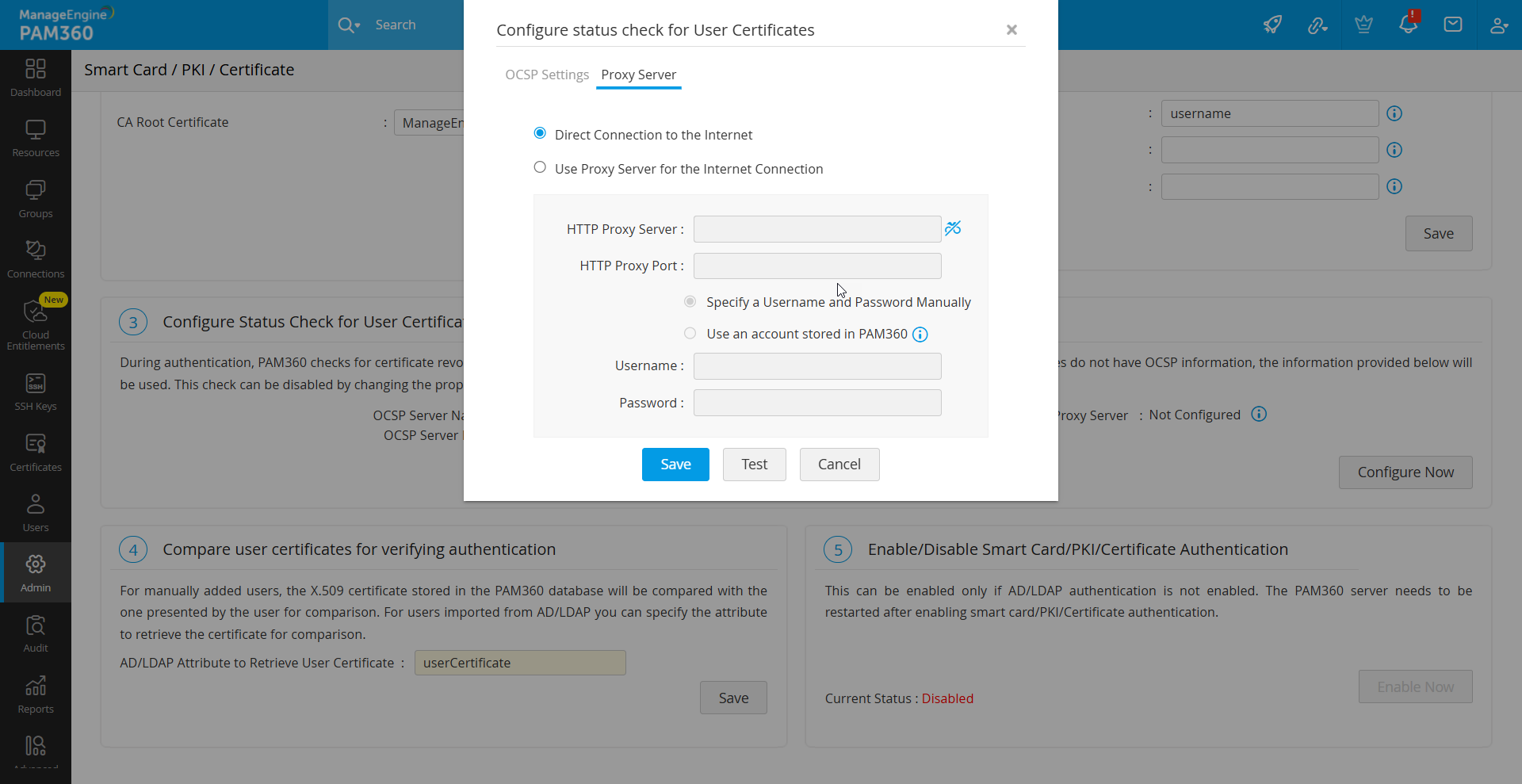
6. Comparing User Certificates for Verifying Authentication
Another crucial step in the authentication process involves comparing the user's presented certificate with the certificates stored within the system or Active Directory/LDAP. For manually added users, the X.509 certificate saved in the PAM360 database is validated against the certificate provided by the user during authentication.
In case, you do not have AD or LDAP in your environment, you need to manually put the x.509 format SSL certificate used for smart card authentication into PAM360. To do so, follow these steps:
- Navigate to the Users tab and click Edit User under the User Actions beside the desired user.
- In the Edit User window that open, update the User Certificate field with the X.509 certificate path.
- Now, click Save to apply the changes.
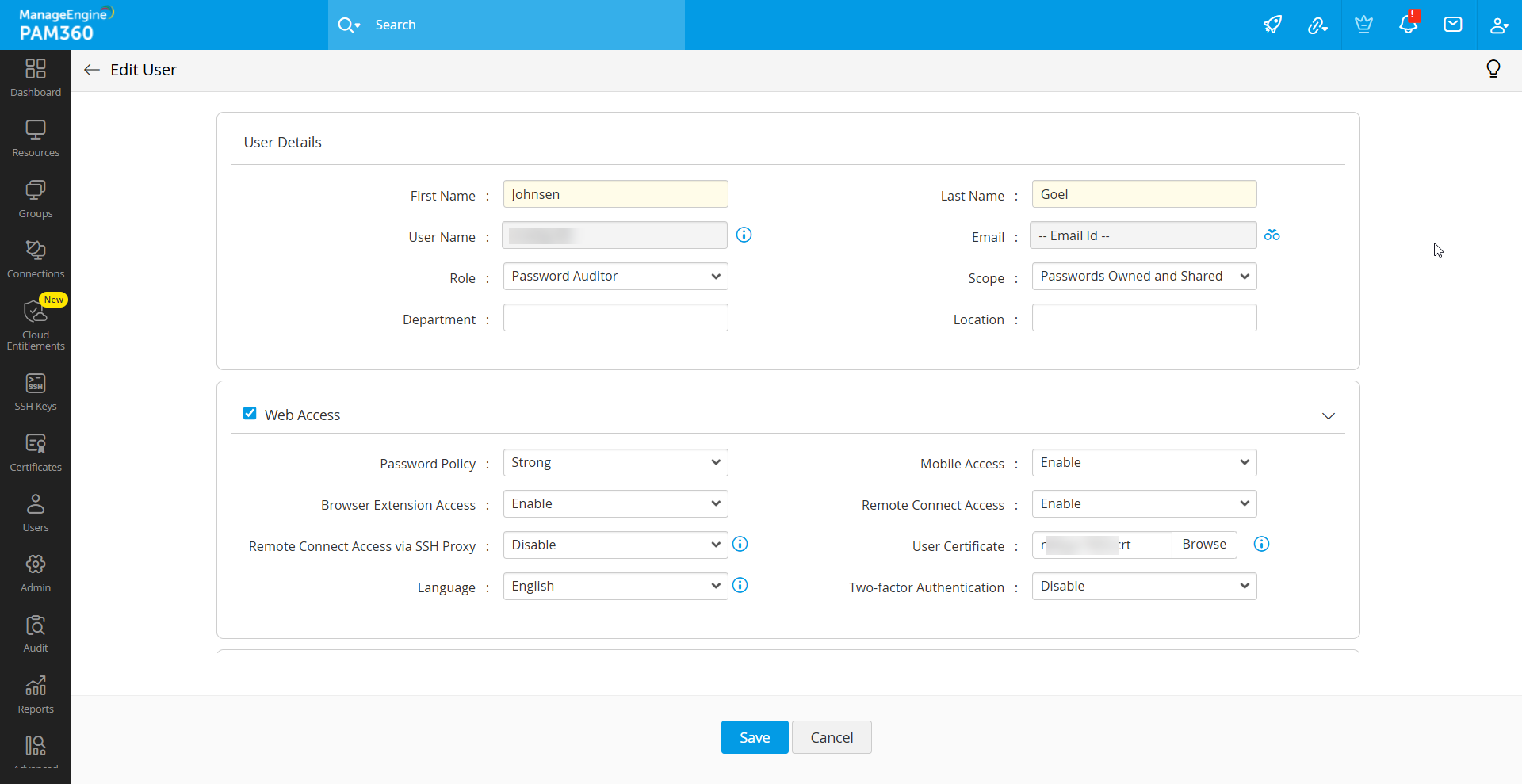
7. Enabling Smart Card Authentication for PAM360
Upon competing all the above required operation, smart card authentication can be enabled for the PAM360 application. To do so, navigate to Admin >> Authentication >> Smart Card / PKI / Certificate, and click Enable to activate smart card authentication.
Caution
- AD/LDAP authentication should be disabled to enable the smart card authentication.
- Enabling smart card authentication globally enforces it for all users. Users without smart card authentication will default to local authentication.
- When enabled, AD/LDAP authentication is suspended.
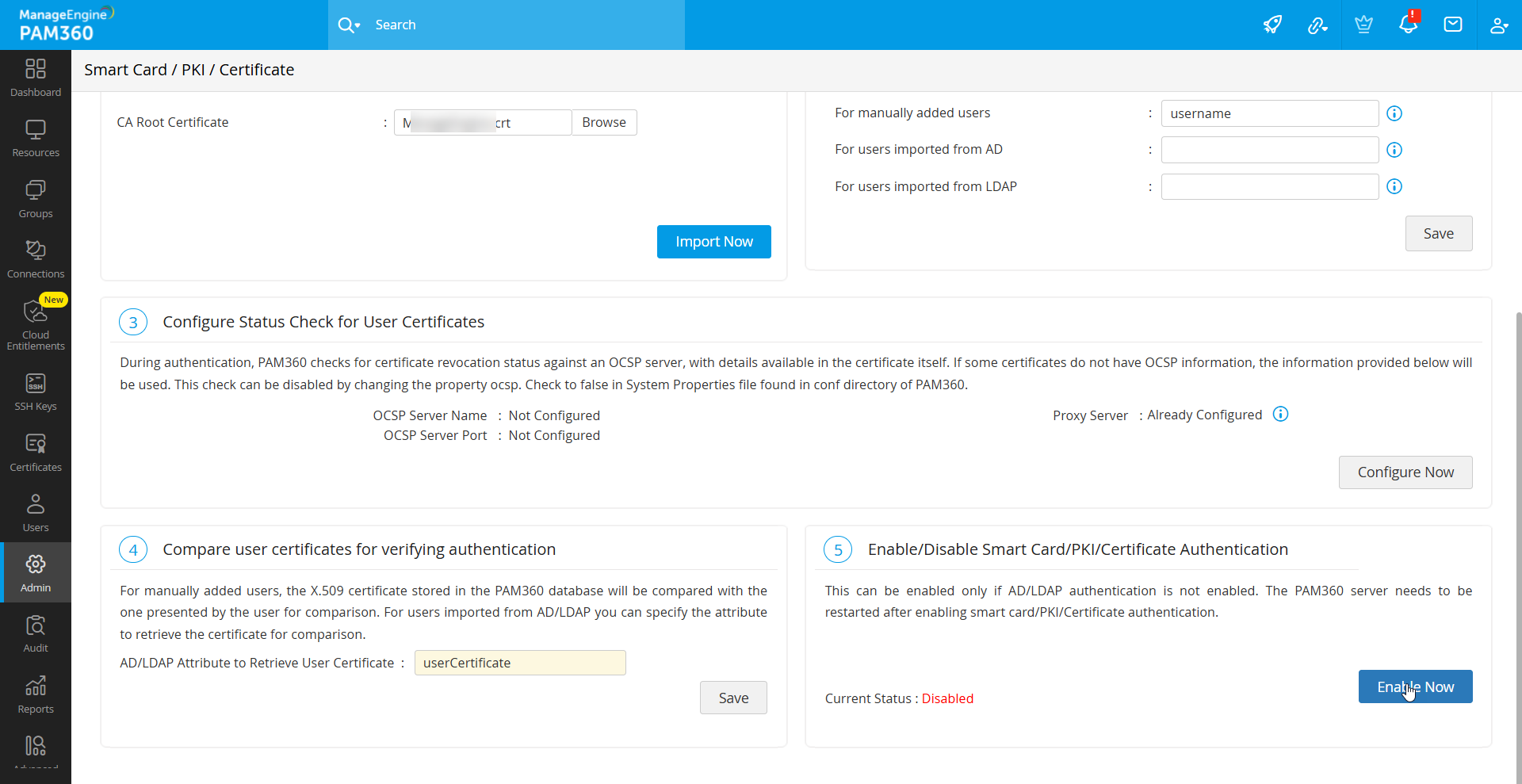
After enabling or disabling smart card authentication, restart the PAM360 server and web browser to apply changes.
8. Smart Card Authentication in High Availability Scenario
If High Availability is configured, replicate smart card authentication settings on the secondary server. To do so, follow these steps:
- Stop the PAM360 primary server and connect to the PAM360 secondary server
- Navigate to Admin >> Authentication >> Smart card / PKI / Certificate.
- Perform the operations in the sections as described above.
- Restart the secondary server.
9. Troubleshooting Tip
1. What if the client certificate selection pop-up does not appear during authentication?
If the pop-up to select a client certificate does not appear during authentication, restart the browser and try again.