Managing Resource Types
PAM360 provides a set of predefined resource types by default. In addition to these, you can create an unlimited number of custom resource types to suit your organization’s needs. Resource types can be managed from both the Resources and Admin tab. You can add, edit, delete, and customize resource types, as well as assign custom icons for easier identification. This document explains the categories of resource types supported by PAM360 and the operations you can perform on them.
For details about the available resource types in PAM360 and their parameters, refer to the Resource Types Help Documentation. At the end of this document, you will have learned the following resource type management operations in detail:
1. Adding a Resource Type
- Navigate to Admin >> Resource Management >> Resource Types, or Resources >> Resource Types.
- In the Resource Types window, click Add. This opens the Add Resource Type dialog box.
- Provide a Name for the new resource type.
- Click Browse to upload a custom icon. If no icon is uploaded, PAM360 assigns a default one.
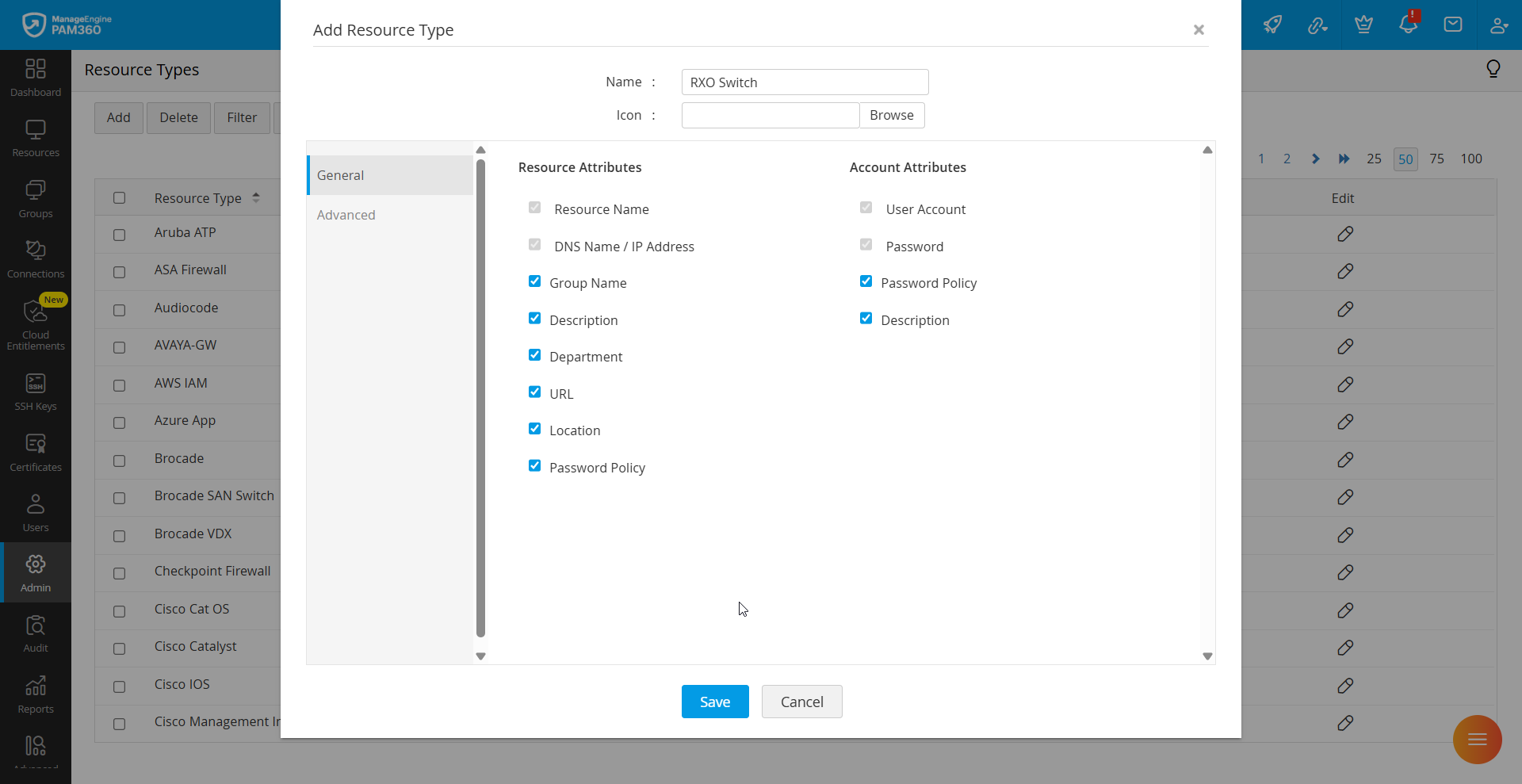
- In the General section, select the required Resource Attributes and Account Attributes for the new resource type.
- In the Advanced section define the password reset mechanism. The following options are available:
- Existing Resource Type: Choose this if the new resource type is similar to an existing one (e.g., a variation of a Cisco or HP network device). This ensures that PAM360 automatically associates similar actions.
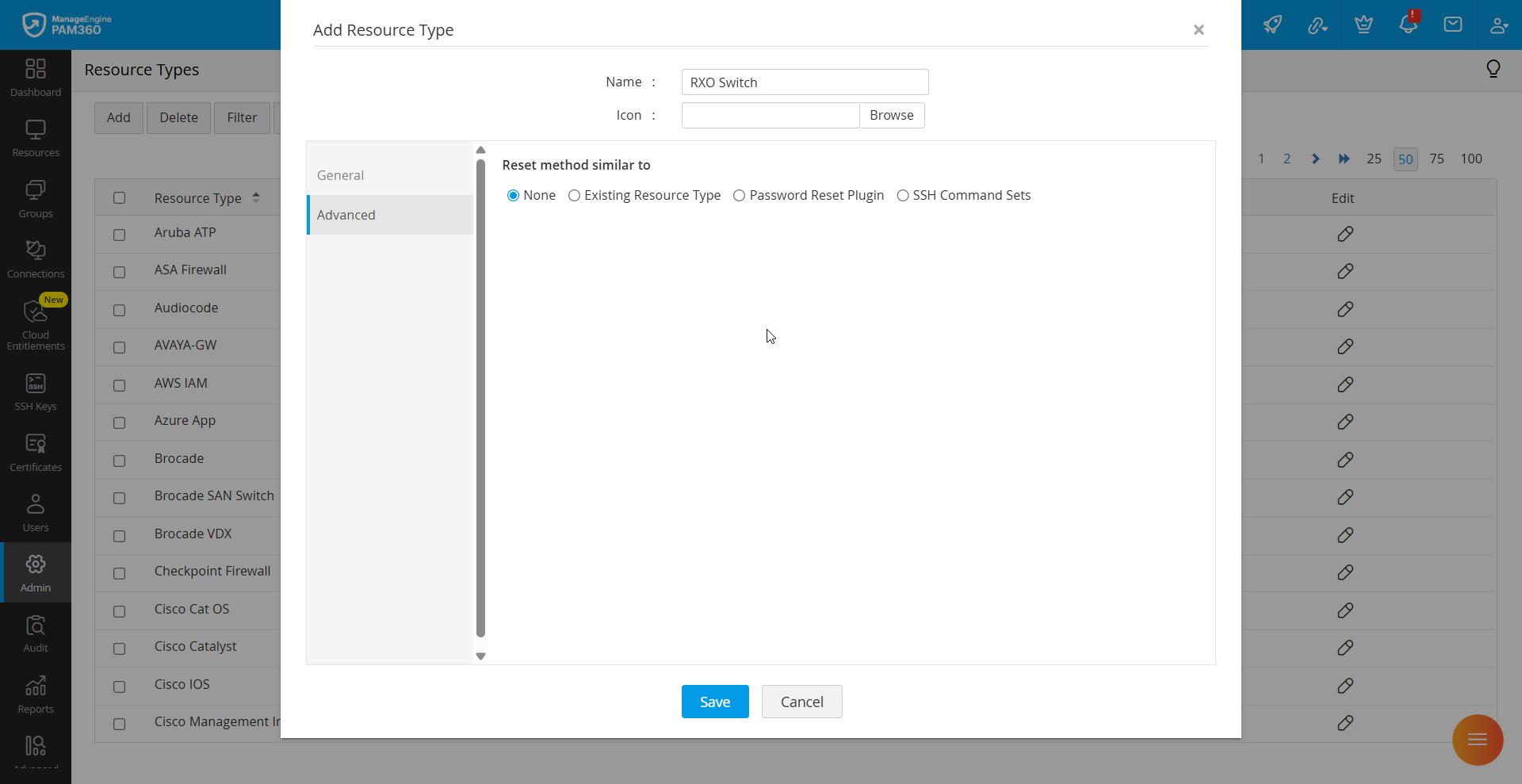
Furthermore, users have the flexibility to choose any resource type from the database servers category and tailor it according to their needs. You can even create a NoSQL server or other SQL server that supports JDBC with custom database attributes. The customized values will be applied during password reset, password verification, account discovery, and SQL autologon session processes. To learn how to create and configure custom database resource types, click here.Caution
Validate all database connection values carefully. Misconfiguration may result in SQL Injection or other security vulnerabilities.
Additional Detail
Any request to create a customized database resource type is sent for approval to users with the Manage Custom Database Connections privilege.
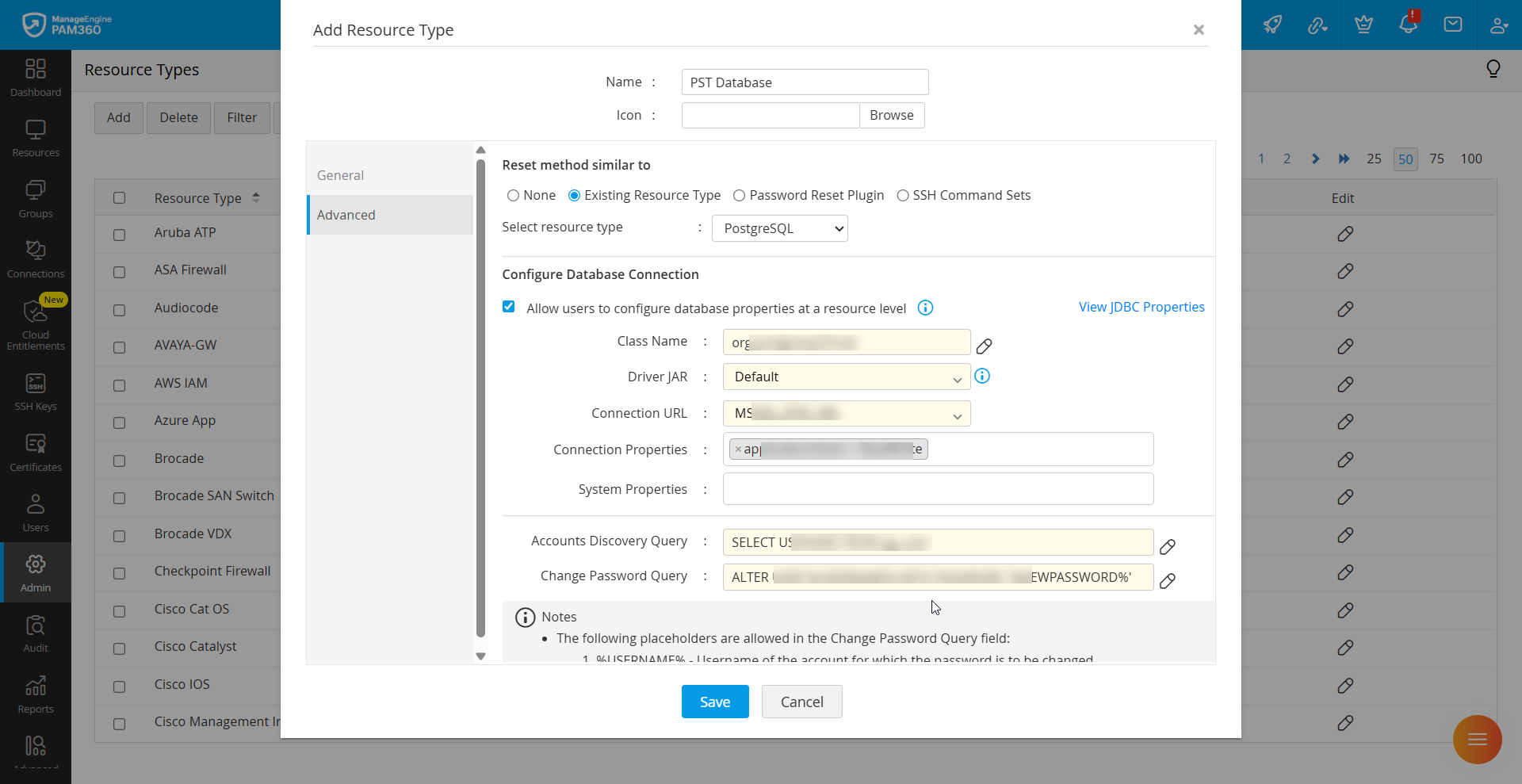
- Password Reset Plugin: Select this if you have created a custom plugin in the Password Reset Plugin under Admin >> Password Management. Click here learn more about password reset plugins.
- SSH Command Sets: Use this option if the resource type is a network device requiring a custom set of SSH commands for password reset. Click here to learn more about SSH Command Sets.
- Existing Resource Type: Choose this if the new resource type is similar to an existing one (e.g., a variation of a Cisco or HP network device). This ensures that PAM360 automatically associates similar actions.
- Click Save to add the new resource type. The newly created resource type is now available in the Resource Type dropdown.
2. Editing or Deleting a Resource Type
The below steps educate you on editing a resource type:
- Navigate to Admin >> Resource Management >> Resource Types.
- Locate the required resource type and click the Edit icon. For bulk modification, select the required resource types and click Bulk Edit.
- In the pop-up window, select or deselect resource and account attributes as required.
Additional Detail
The Advanced section of a resource type cannot be modified, and default resource types are not editable.
- Click Save to apply the changes.
To delete a resource type, follow these steps:
- Navigate to Admin >> Resource Management >> Resource Types.
- Select the resource type to delete. Click Delete and confirm by clicking OK in the pop-up dialog.
Additional Detail
Default resource types cannot be deleted. However, you can modify their attributes to better align with your requirements.
3. Enabling Resource Types Filter
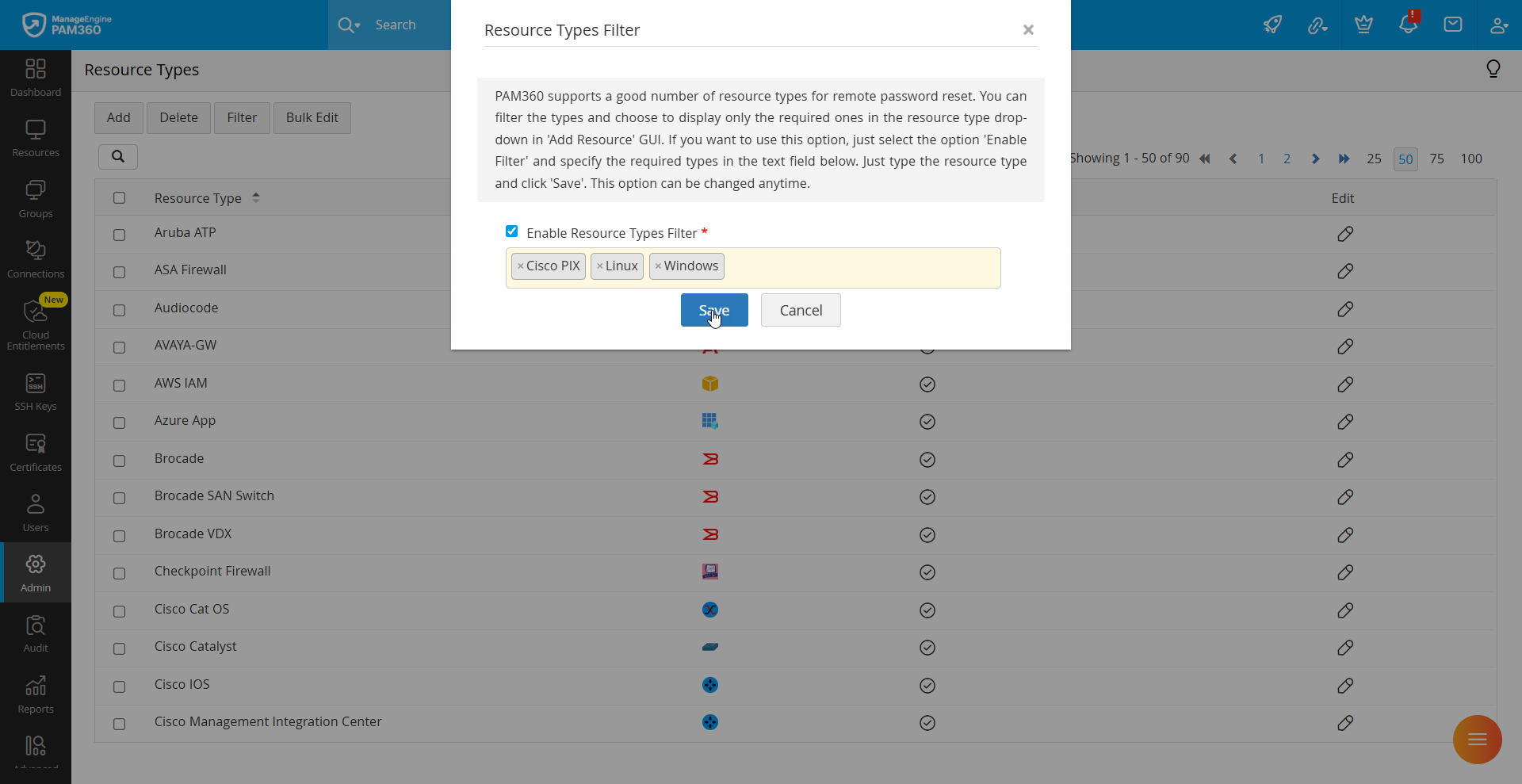
The resource type filter helps you simplify the Add Resource dropdown by displaying only the required resource types that are frequently used. Follow the steps below to enable the resource type filter:
- Navigate to Admin >> Resource Management >> Resource Types.
- Click the Filter option. In the pop-up window, select the Enable Resource Types Filter checkbox and specify the resource types to be displayed in the dropdown.
- Click Save to enable the filter.